Build Fullstack Sitecore Marketplace App with Next.js & shadcn (Part 1)
In the previous blog, we explored what Marketplace apps are, why they matter, and how they fit into Sitecore XM Cloud.
This post (Part 1) is the hands-on setup guide: scaffold the project, wire App Studio, collect the right IDs, and get the app running on https://localhost:3000. Authorization inside the Sitecore portal and Page Builder testing are covered in Part 2.
Series navigation
- Sitecore Marketplace Apps: Overview and Why They Matter
- Build Fullstack Sitecore Marketplace App with Next.js & shadcn (Part 1) — you are here
- Sitecore Marketplace App - Authentication, Testing & Conclusion (Part 2)
Here’s another way to build a Marketplace app using Next.js and shadcn. While Sitecore provides a Marketplace Starter Kit on GitHub, this approach includes preconfigured authentication and examples for both client-side and server-side use.
What you will have after Part 1
- A scaffolded Next.js Marketplace app from the shadcn full-stack quickstart
- App Studio configuration with Standalone + Page Builder context panel extension points
- Client credentials and the four IDs required in
.env - The app running locally over HTTPS (ready for OAuth in Part 2)
Developer Setup (Part 1): Create and Configure Your Marketplace App
Step 1: Scaffold Your Marketplace App
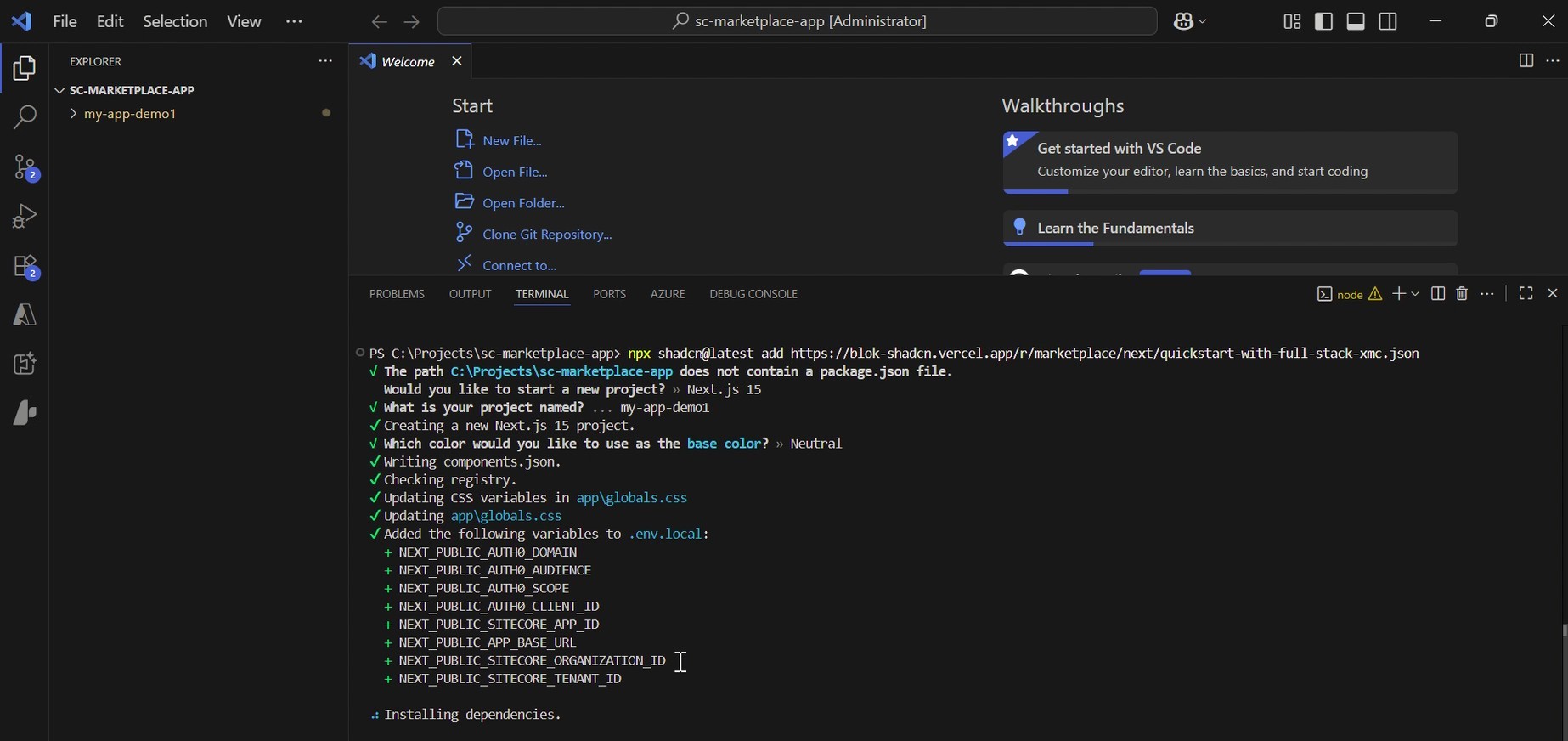
1. Scaffold the app using the npx command
Create a project folder, open it in VS Code or a terminal, and run:
npx shadcn@latest add https://blok-shadcn.vercel.app/r/marketplace/next/quickstart-with-full-stack-xmc.json
2. Enable Experimental HTTPS in package.json
Enable experimental HTTPS by adding a flag to your package.json scripts. This lets the app run locally over HTTPS, which is required for secure authentication.
Update the scripts section like this:
  "scripts": {
    "dev": "next dev --turbopack --experimental-https",
    "build": "next build --turbopack",
    "start": "next start --experimental-https",
    "lint": "eslint"
  },
3. Review the Environment Variables
This creates a .env file with variables like the ones below. You’ll fill some of these in Step 2.
NEXT_PUBLIC_AUTH0_DOMAIN=https://auth.sitecorecloud.io
NEXT_PUBLIC_AUTH0_AUDIENCE=https://api-webapp.sitecorecloud.io
NEXT_PUBLIC_AUTH0_SCOPE=openid profile email offline_access
NEXT_PUBLIC_AUTH0_CLIENT_ID=your-client-id
NEXT_PUBLIC_SITECORE_APP_ID=your-marketplace-app-id
NEXT_PUBLIC_SITECORE_ORGANIZATION_ID=your-org-id
NEXT_PUBLIC_SITECORE_TENENT_ID=your-tenant-id
NEXT_PUBLIC_APP_BASE_URL=https://localhost:3000
Step 2: Configure Your App in Sitecore App Studio
1. Create App in App Studio
-
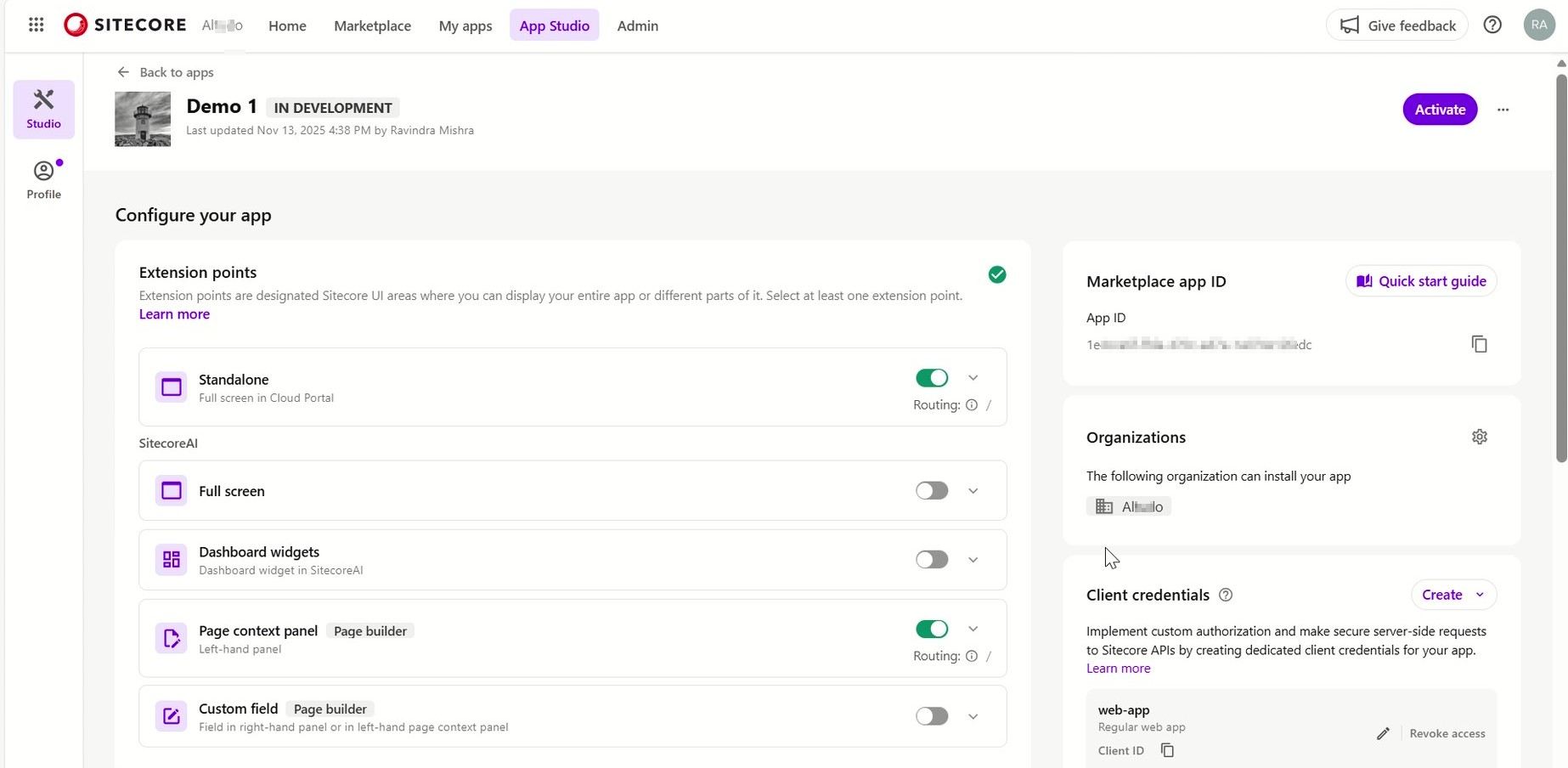
Go to Sitecore Cloud Portal. Click on “App Studio” from top navigation.
-
Click on “Create App” button at top right corner of the screen.
-
Enter an app name and select Custom or Public, depending on your requirement. (Refer documentation: App types)

-
Click Create, then configure the application. (App Studio > Click on the App)
2. Configure your application
-
Choose the Extension Points you want to enable, and optionally set a landing page for each. Here, we’re using Standalone and Page Context Panel.
-
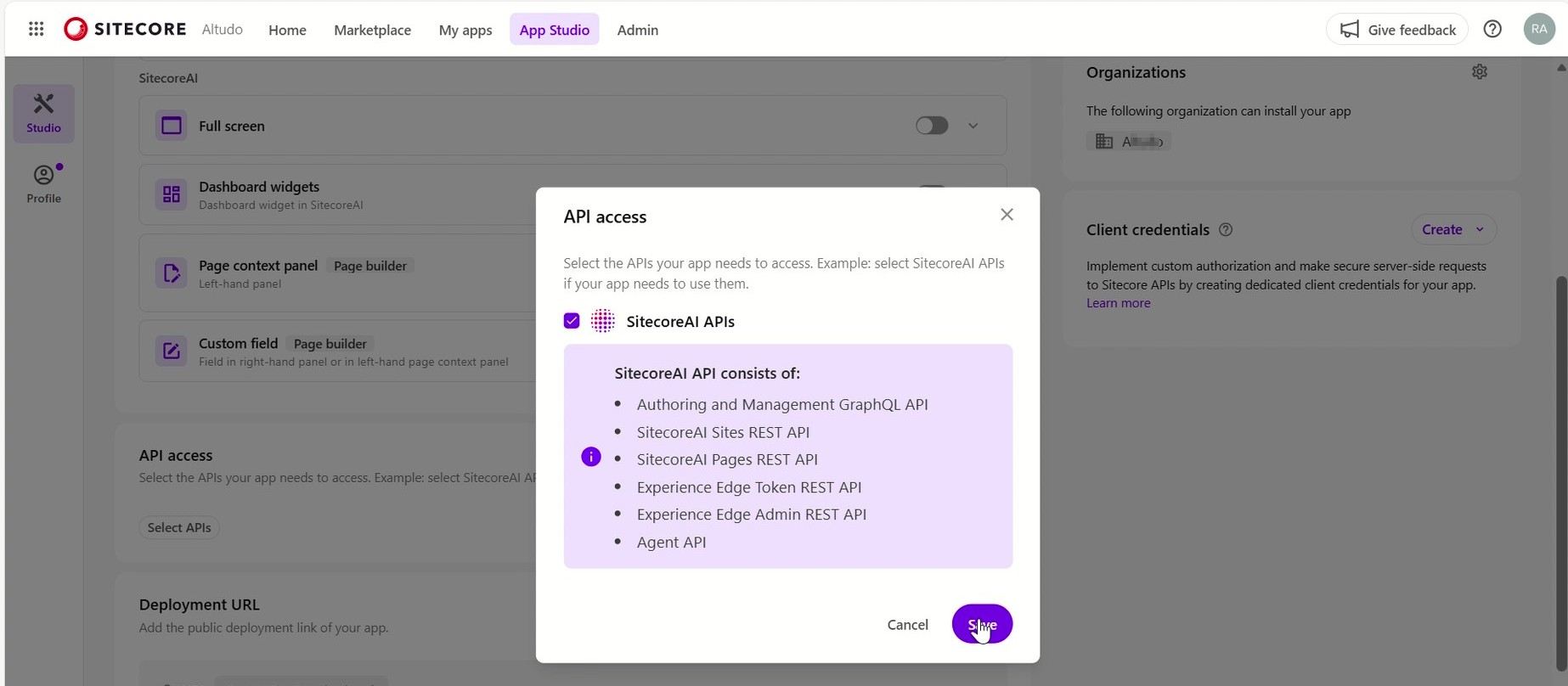
API Access: Select the Sitecore Cloud products where your app can be installed. Currently, only XMC and SitecoreAI are available, but additional options may be added in the future.
-
Deployment URL: For local development, use https://localhost:3000.
-
App Icon: Use a 512×512 publicly accessible image URL. Any logo works, as long as the URL is publicly accessible.
eg. https://fastly.picsum.photos/id/58/512/512.jpg?hmac=jxfe82GanXiWmTfpdeMNdzSvGv4RS_eqipxzUduQUeg

3. Create Credentials
Configure authorization credentials, as they are required for server-side custom authorization of Sitecore API requests. Add the allowed callback, logout, and origin URLs, then generate the Client ID and Client Secret. For now, include localhost URLs; you can add dev or staging URLs later.
- Allowed callback URLs: https://localhost:3000/auth/callback, https://localhost:3000
- Allowed logout URLs: https://localhost:3000
- Allowed origins URLs: https://localhost:3000
- Allowed web origins URLs: https://localhost:3000
Finally, click Create Credentials to generate the Client ID and Client Secret, and store them securely for future reference.

4. Collect Important IDs for Frontend Configuration
Collect the IDs you’ll add to your .env file.
- App ID (Marketplace app ID section, available on right side)
- Organization ID (from URL query, eg.
?organization=org_TLXXXXXXXPf) - Client ID (Generated from client credentials)
- Tenant ID (we will get after Activating and Installing the app, refer 6 point)
5. Activate the application.
- Click Activate in the top-right.
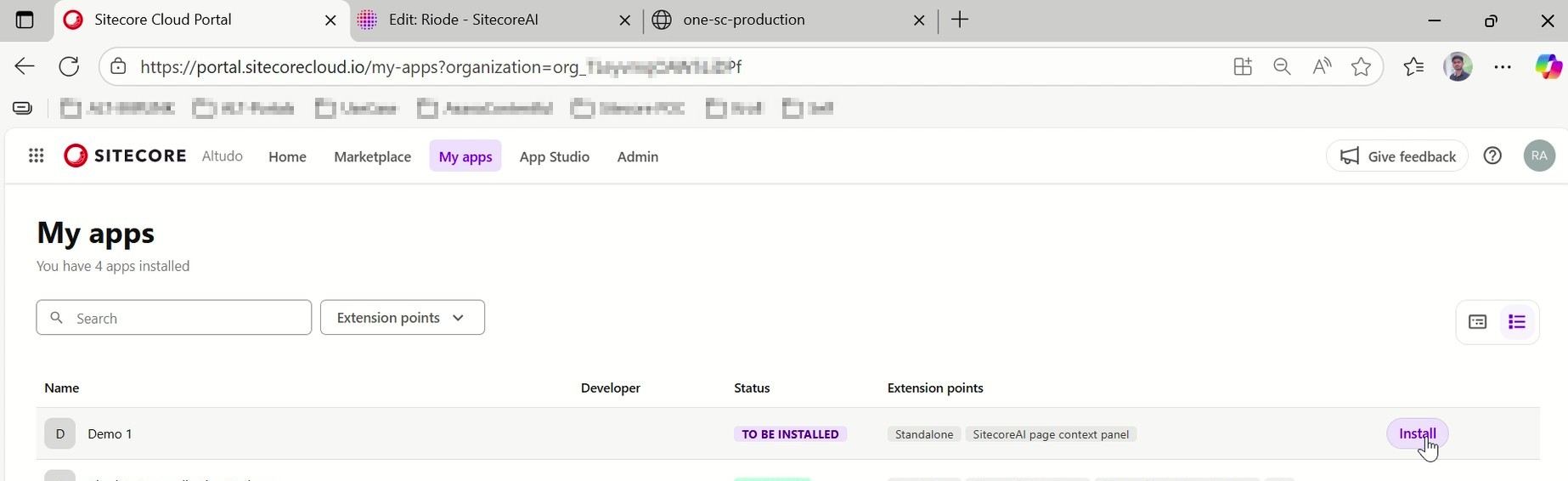
- After activation, the app appears under My Apps (from top nav bar) in the Sitecore portal.
6. Install App and get the Tenant Id
Install the App:
Go to My Apps and install the app on the SitecoreAI or XMC instance.
Retrieve Tenant ID:
- After installing the app, navigate to the Home section of the Sitecore Cloud portal from the top navigation.
- Scroll down to the Apps section.
- Locate the app you recently created and click on it. It will open in a new tab.
- Copy the tenantId from the query string in the URL.
Note: After installing the app, any changes made in App Studio must be updated again from the My Apps section to ensure they are reflected.
Step 3: Update .env and Run the App
Use the IDs collected in the previous steps to update your .env file.
- NEXT_PUBLIC_AUTH0_CLIENT_ID=your-client-id
- NEXT_PUBLIC_SITECORE_APP_ID=your-marketplace-app-id
- NEXT_PUBLIC_SITECORE_ORGANIZATION_ID=your-org-id
- NEXT_PUBLIC_SITECORE_TENENT_ID=your-tenant-id
Now, run npm run dev, then open https://localhost:3000 in a new tab.
At this point, your app is fully configured and running locally.
Part 1 checklist before you continue
-
npm run devserves the app athttps://localhost:3000(not HTTP-only) - App Studio shows your chosen extension points and Deployment URL
- Client ID / App ID / Organization ID / Tenant ID are set in
.env - The app is activated and installed on your SitecoreAI or XM Cloud instance
In the next part, we’ll continue with authorization, testing inside XM Cloud, and validating extension points.
Continue reading: Next Part — Authorize & Test Your Marketplace App