Sitecore Marketplace App - Authentication, Testing & Conclusion (Part 2)
In Part 1, we scaffolded the app, configured App Studio, and ran it locally. This post (Part 2) focuses only on authorization, a common portal CORS issue, and verifying both extension points you enabled earlier.
Series navigation
- Sitecore Marketplace Apps: Overview and Why They Matter
- Build Fullstack Sitecore Marketplace App with Next.js & shadcn (Part 1)
- Sitecore Marketplace App - Authentication, Testing & Conclusion (Part 2) — you are here
Prerequisites from Part 1
Before continuing, confirm:
- The app runs at
https://localhost:3000with experimental HTTPS enabled - App Studio has Standalone and Page Builder context panel extension points
.envincludes Client ID, App ID, Organization ID, and Tenant ID- The app is activated and installed on your SitecoreAI or XM Cloud instance
If any of those are missing, finish Part 1 first.
Developer Setup (Part 2): Authorize & Test Your Marketplace App
This guide continues from Step 3 in Part 1.
Step 4: Authorize Marketplace App on Sitecore Portal
Open https://localhost:3000 in a new browser tab. This triggers the OAuth flow and lets you authorize the app.
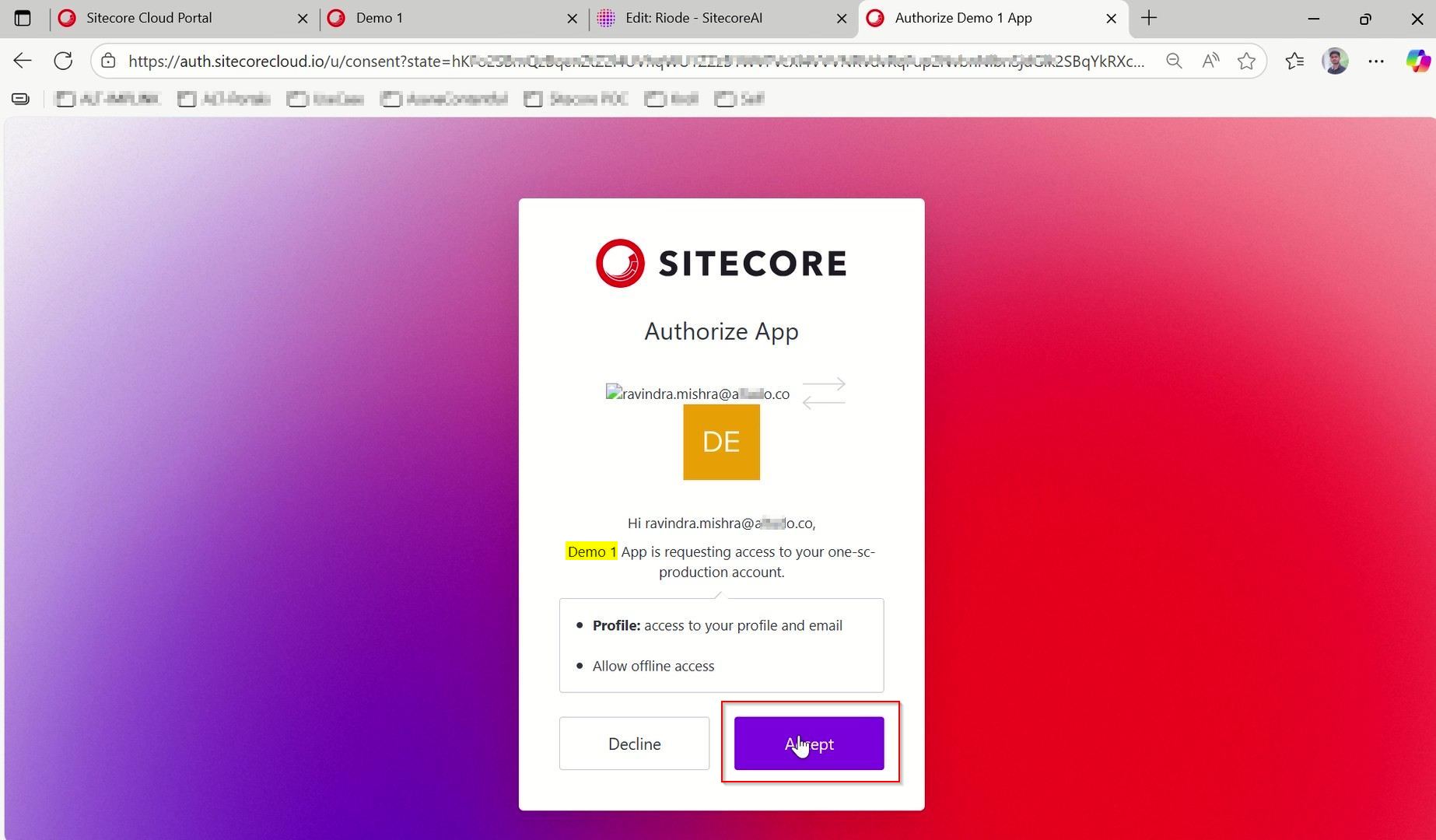
After authorization, reopen the app from the Sitecore portal to verify it. You can now explore its features.
Common issue: auth.sitecorecloud.io blocked in the portal iframe
The first time you open the app in the Sitecore Cloud portal, you may see CORS errors with auth.sitecorecloud.io because the OAuth flow gets blocked inside the embedded view.
Fix:
- Keep the Marketplace app running locally (
npm run dev). - Open the app URL once in a separate full browser tab (not inside the portal iframe).
- Complete the OAuth consent / login flow there.
- Return to the Sitecore Cloud portal and open the app again from Apps.

This pattern is normal for local HTTPS Marketplace apps during the first authorize pass.
Step 5: Open Your Marketplace App in XM Cloud and Verify
Since we enabled two extension points during configuration—Standalone and Page Builder context panel—verify both.
Standalone
On the Sitecore Cloud portal home page, scroll down to the Apps section. Find your app and click it. This opens the app in Standalone mode.

What success looks like: the app loads outside Page Builder, usually on the route you configured for the Standalone extension point (often the home route).
Page Builder context panel
- Open your XMC or SitecoreAI instance where the app is installed.
- Navigate to Page Builder and ensure you are on the Editor tab (top navigation in Page Builder).
- Look for the Apps icon—the third icon from the top-right corner, after the Publish button.
- Click the icon and select your application.

Your app should now appear inside the Page Builder panel.

What success looks like: the panel opens beside the canvas without a blank iframe, and any client/server Marketplace SDK samples on the page can call APIs with your tenant context.
Step 6: Validate Marketplace SDK samples on the home route
Your app is up and running. The home route loads by default unless you changed the extension point settings.
The starter page typically includes:
- Client-side Marketplace SDK examples (browser / iframe context)
- Server-side examples for authorized API calls
Run both paths once after OAuth succeeds. If client calls work but server calls fail, re-check Client ID/Secret, allowed callback URLs, and that Tenant ID in .env matches the installed instance.
Troubleshooting quick reference
| Symptom | Likely cause | What to try |
|---|---|---|
auth.sitecorecloud.io refused in portal | OAuth blocked in iframe | Authorize once in a normal tab, then reopen from Apps |
| App missing under Apps | Not activated or not installed | Activate in App Studio, install on the target instance from My Apps |
| Blank Page Builder panel | Wrong extension point URL or app not installed on that site | Confirm Page Builder context panel URL and reinstall/update from My Apps |
| 401 on server SDK calls | Bad credentials or tenant mismatch | Regenerate credentials; confirm Tenant ID from the installed app URL |
Conclusion
You now have an end-to-end path for a full-stack Sitecore Marketplace app:
- Concepts and architecture — Overview
- Scaffold + App Studio + local HTTPS — Part 1
- Authorize + verify Standalone and Page Builder — Part 2 (this post)
Was this guide helpful?
If you have questions, feedback, or ran into any setup issues, feel free to share them in the comments.